Generate Driver Bone
Object |
Edit Armature |
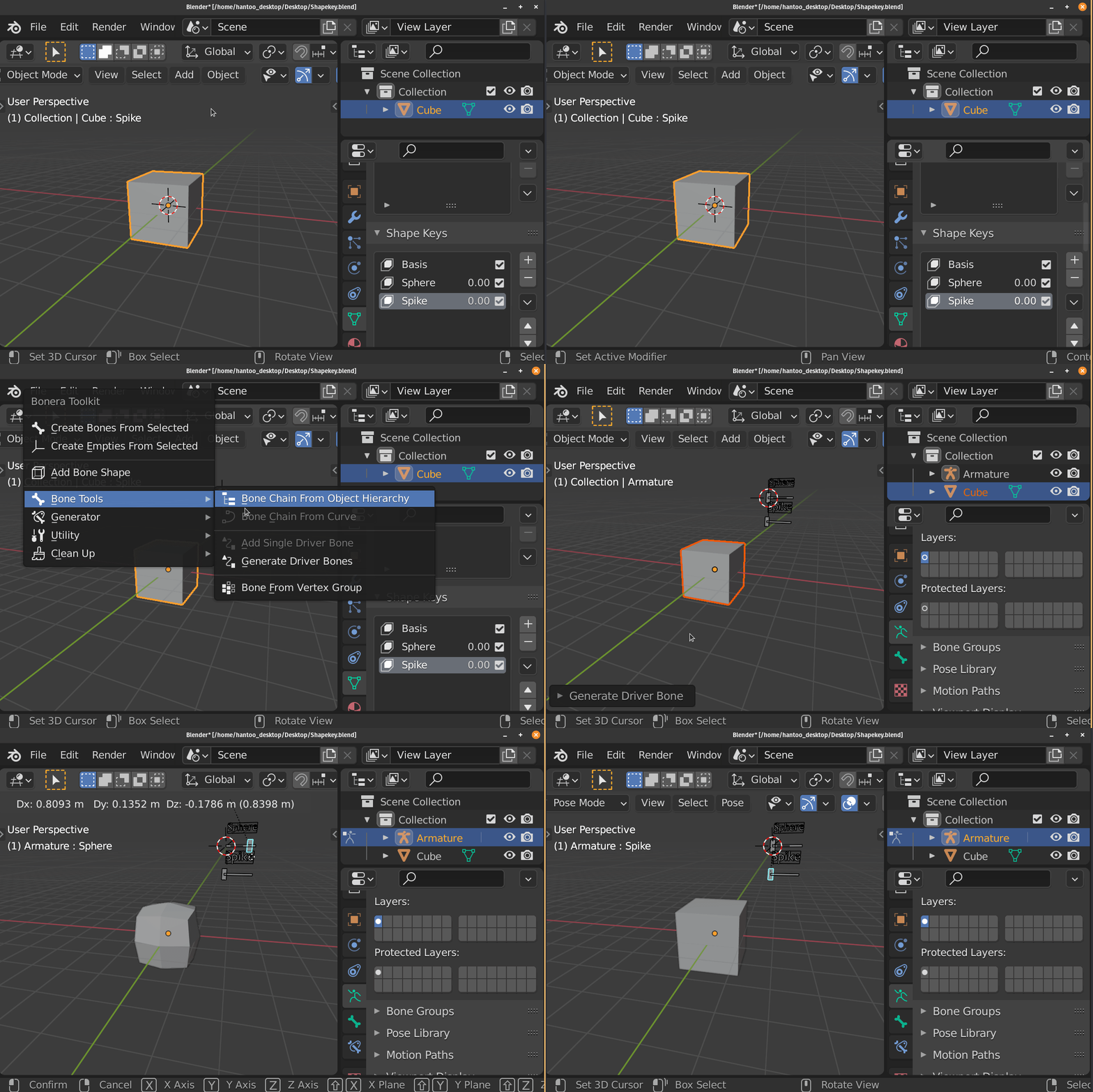
This Operator Creates Driving Bones for A type of Properties Layout in rows / column
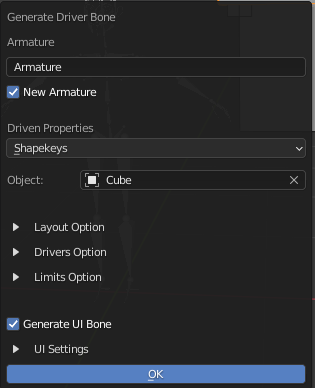
Armature Options
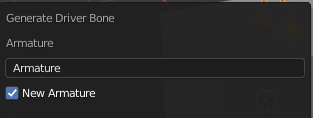
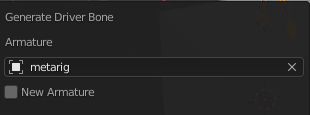
Armature Name / Picker: Armature Name for a New Armature or Existing Armature
New Armature: Create a New Armature for the Sliders
Driven Property
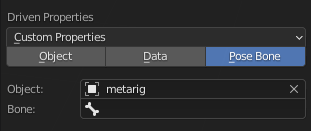
Driven Property: Types of Driven Property
- Type of Property
- Custom Properties
- Object
Custom Property of an Object
- Data
Custom Property of an Data of the Object (Mesh Data / Armature Data / Curve Data)
- Pose Bone (Armature Object)
Custom Property of a Pose Bone
- Shapekeys (Mesh Object)
Shapekey to be driven by the Driver Bone
Object: Object with the property to be driven
Layout Settings
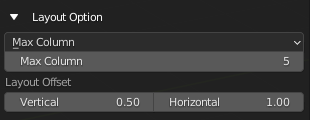
Layout Settings:
Set the Layout setting to use Max Column or Max Row
Max Column
Max Row
Max Column / Max Row:
Max Column or Row before going to the next Row or Column
Layout Offset:
Offset Distance between the Sliders
Vertical: Vertical Distance
Horizontal: Horizontal Distance
Driver Options
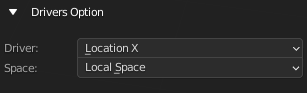
Driver: Property of the bone that drives the Driven Property
Space: The Space the Driver is using
Limit Options
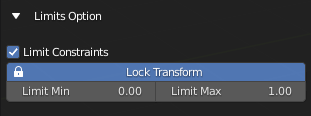
Limit Constraints: Add Limit Constraint to the Driver Bone
Lock Transform: Lock the relevant Transform channel
Limit Min: Set the Minimum limit for the constraints
Limit Max: Set the Maximum limit for the constraints
Map Value to Min Max: Map the Value of the driven property from 0 - 1 to Minimum Limit and Maximum Limit
UI Settings
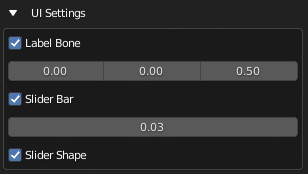
- Generate UI Bone:
Generate the UI Bone with bone shape Including a Label Bone, Slider Bar Bone, and Add A Slider Bone Shape to Driver Bone
- Label Bone:
Generate the Label Bone with it’s bone shape text object
Label Offset: Offset Amount of Label Bone From Slider Bone
- Slider Bar:
Generate Slider Bar with Bone Shape
Slider Bar Thickness: Thickness of Slider Bar
Slider Shape: Generate Slider Bone Shape for Driver Bone
Info
Driver Bone, Label Name Bone and Slider Bone will be generated with this. The Label will use the Property Name as Label, You can Edit the Bone Shape Label as a text object